Explanations
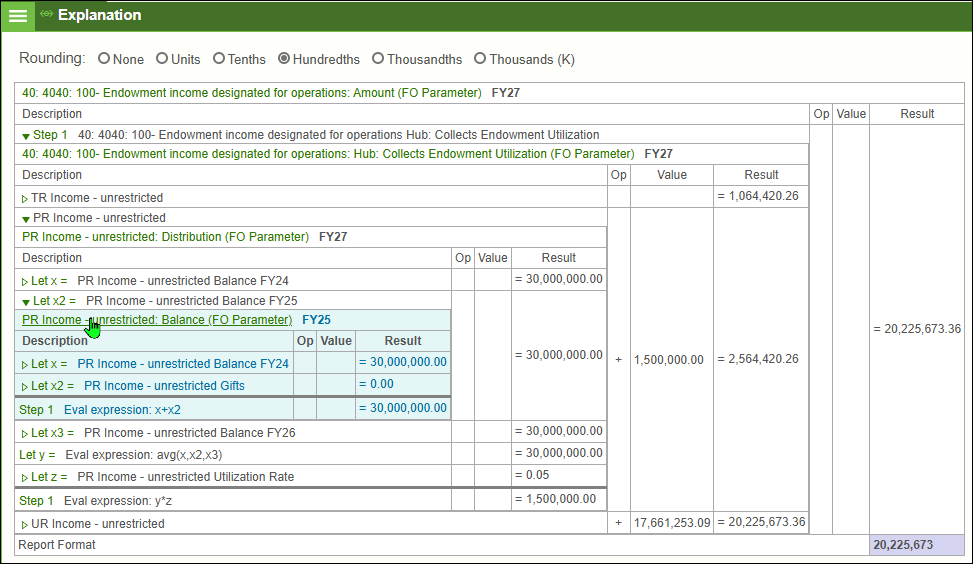
To understand how a number in a report was calculated, click the number and choose "Explain" from the pop-up menu. The Explanations Panel will appear in a split to the right side of the report. You can work with Explanations as you keep the report in view. If desired, you can resize the split to show more or less of the report or Explanations Panel. You can also close the report panel or any other panels displayed on your workspace to dedicate more space to Explanations.
As you drill-down into the calculation steps, Explanations makes it easy to understand how each number was derived.
Rounding Options
Choose the rounding display options that best fit your needs. The following options are displayed at the top of the Explanations Panel:
-
None: The default; displaying full resolution.
-
Units: Rounding to the nearest whole number.
-
Tenths: Rounding to one decimal place.
-
Hundredths: Rounding to two decimal places.
-
Thousandths: Rounding to three decimal places.
-
Thousands (K): Each number displayed represents the value multiplied by 1,000.
Visual Features
The Explanations panel contains a number of visual features to help you click to confidence:
-
All clickable elements are displayed in green.
-
Click arrows to drill down for further explanations.
-
The last drilled-down section will be highlighted.
-
As you move your mouse over the display, parent and child sections will be highlighted.
-
The last row of the Explanations Panel indicates how numbers will be displayed in the report using the current formatting options in effect.