Report Stylers
Creating custom formatting for your reports is easier than ever with Stylers. The Styler feature consolidates and streamlines how you format your reports and offers a wealth of options. We recommend that you transition your reports from legacy styling to Report Stylers but you can keep using legacy styles if you are not yet ready to transition.
Transitioning from Legacy to Report Stylers
If your reports are still using legacy styles, the transition to the new Report Stylers is easy and fast!
-
In the Navigation Pane, expand Report and Chart Settings and right-click on Formatting Styles
-
Click Add and choose "Transition from Legacy Styling to Stylers"
-
The average time to transition your reports to use the new Stylers is usually under 10 seconds but can take longer if your model has a very large number of reports. A pop-up message will appear to let you know that your reports have been transitioned.
A default Styler called "Report Styler" will be created under Formatting Styles as a result of the transition and will contain as set of Styler Rules. The Report Styler panel will be displayed for you and will show you a list of formatting rules and the reports that use them. You can click directly on rules to modify them or can interact with the cells on your reports to create or modify styling rules. See Formatting Reports with Styler Rules for more details.
You can use the default Styler for as many reports as you'd like or you can create new stylers to use with reports. To change the Styler that is used by default with your reports, got to Model Parameters and use the Default Styler drop-down to select a different Styler.
Formatting your reports with Stylers is available in Power User and for the reports you use in your Dashboards!
Catalog of Styling Templates
As a quick start to styling new reports or as an option to make a wholesale change to the styling of an existing report, we offer a catalog of templates you can choose from.
-
While displaying a report click the title of the Report to display the Report Menu.
-
Click "Styling" to expand the section and choose "Change Styler"
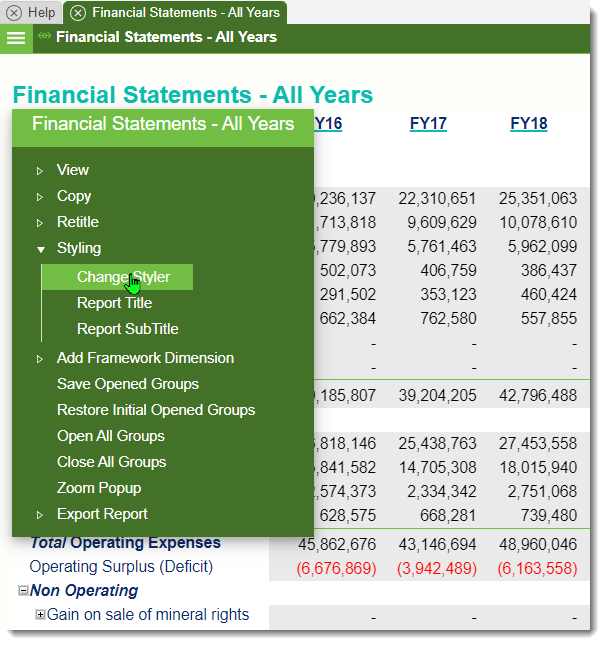
-
A panel will be displayed showing the existing Stylers used by the model and thumbnails of available Styler Templates you can select.
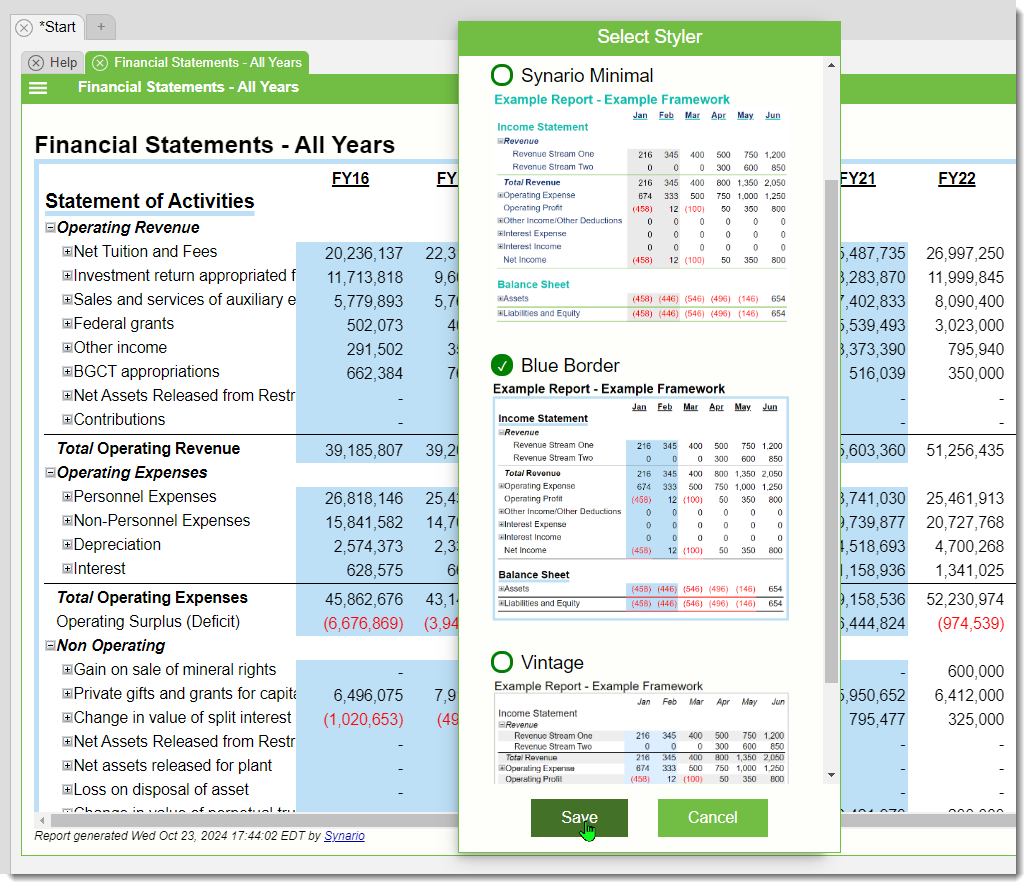
-
When you click a thumbnail, your report will change appearance to reflect the formatting rules that are part of that template. If you like the preview you see, click Save to apply that template to your report. Otherwise you can select a different thumbnail to preview. You can also close the panel by clicking the Cancel button.
Styler Rules
Formatting reports is made easy with Styler Rules. The Styles that are used in the model can be found by expanding the Default Styles group under Report and Chart Settings > Formatting Styles. To work with the rules in a Styler, click the title of a rule to open it.
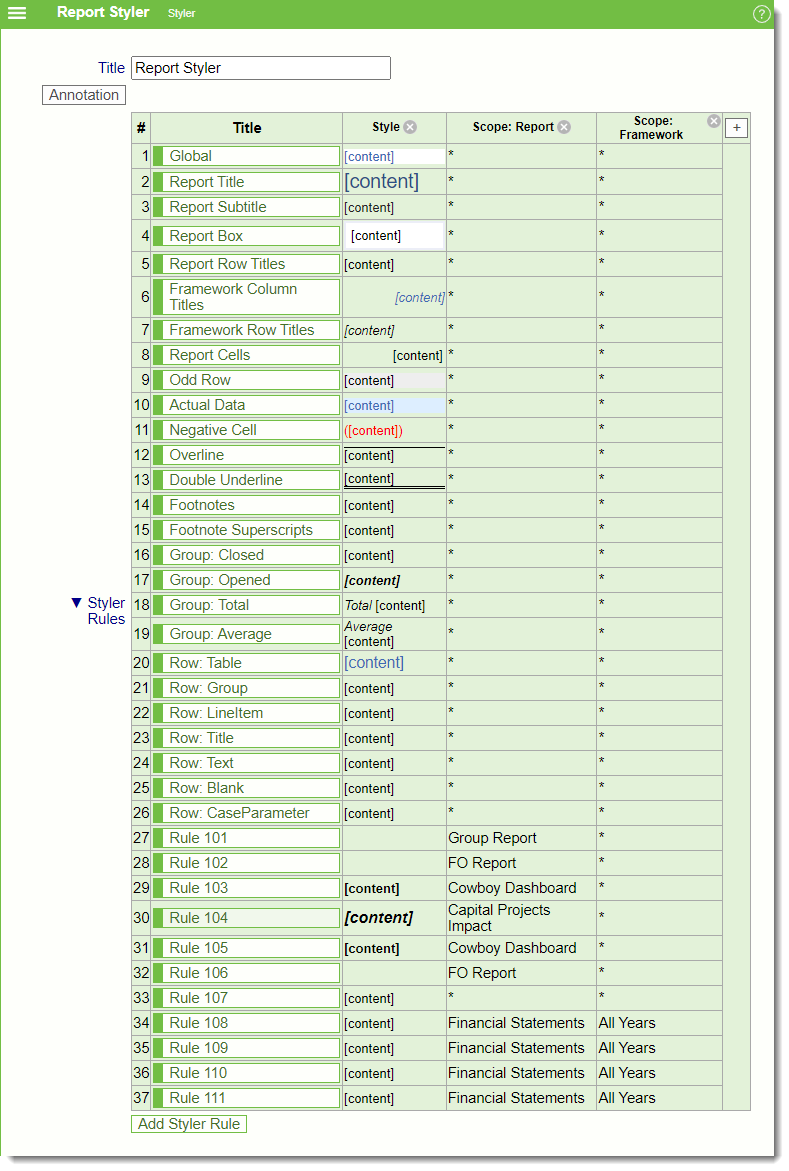
The example below shows the default columns. This includes the title of the rules and a preview of the formatting. Additional columns of information can be added by clicking the + and selecting the columns to include. Columns can also be reordered by using the renumber option and columns can be removed by clicking the x icon.
Generic Rules vs Specific Rules
Generic rules apply to all reports and frameworks. Specific rules are rules that are constrained to certain reports or frameworks and are generally titled with rule numbers.
Order of Precedence
Rules that appear lower in the list take precedence over rules that appear higher in the list. If two rules apply formatting to the same are of the report (Scope Dimension), the rule appearing lower in the list may change the formatting of the higher listed rule. Rules can be re-ordered by dragging the rule title and dropping elsewhere in the list.
Note that a preview of the formatting associated with each rule is shown as a preview in the Style column to the right of the rule name.
Exporting and Importing Generic Rules
Generic rules can be exported from a Styler in one model and into another model. This can save you lots of time on rules that you have worked hard to create so that you can use them with reports in another model.
Only Generic Rules can be exported. Specific rules are tied to specific reports and frameworks in a model.
Exporting Rules
-
From the 3-bar menu of a Styler panel, select "Export Generic Rules".
-
Click inside the text box containing the rule codes and do a Ctrl-A to select all.
-
Use Ctrl-C to copy the text.
Importing Rules
-
Open the model you wish to import these rules into
-
Right-click on Formatting Styles under Report and Chart Settings.
-
Select "Add Styler using exported generic rules"
-
Click into the text box and use Ctrl-V to paste in the rule codes
-
A new Styler will be created with a list of the generic rules you exported.