Formatting Styles (Legacy)
Styles allow you to change the appearance of reports for such things as font family, font size, text alignment, border, padding, and color.
Creating custom formatting for your reports is easier than ever with Stylers! Transition your reports from legacy styles and start using Report Stylers today!
Report components that can be styled
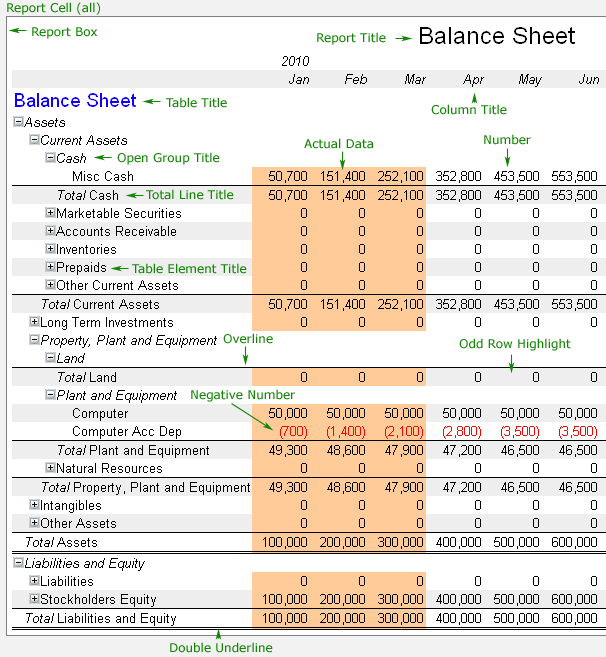
The following graphic illustrates the components of a model that can be styled. The Report Cell style is the default; all other styles inherit this default.
|
Styles are configured using Cascading Style Sheet (CSS) standards. Each CSS property can have several values. The software includes several properties by default but also allows custom properties to be added.
Note: Different browsers (e.g. Microsoft Internet Explorer, Mozilla Firefox, Google Chrome) support some styles and not others, or treat the same styles differently.
Editing CSS Styles
There is a set of default styles that are used in all reports. These styles can be modified under
You will also find that you can modify styles by:
- Modifying individual reports, report tables, or individual elements of a report
- Modifying individual Frameworks, for any included Model Dimensions
- Clicking on a component of a displayed report and selecting Styling
Note: Report and Framework styles use the default style for its location in the report (see Illustration 1 above). You have the option of applying another one of the default styles in addition to creating your own custom style, or to create your own custom HTML (see below).
To Edit Styles:
- Style parameters are hidden by default. If Styles are not visible, expand the collapsed section, or from the menu select .
- Click the button for Style to review the current style properties and their values
- Make any desired adjustments to their values
- If you wish to add a new property, select it from the drop down list. The new property will appear along with a list of its possible values.
- If you wish to experiment with a custom CSS property, select Custom Property. Two input boxes will appear, one for the property, and the other for its value. Enter the property name and value and save your change.
- If you wish to remove a property, select and save your change.
Custom HTML
Rather than simply styling a part of the report, it is sometimes useful to be able to override it completely with your own custom text, images and styling. You can do this using the Custom HTML Editor. To access it, Click next to style you want to change and select .
W3C Cascading Style Sheet Website