Data Store Import Summary
Import Summary Table
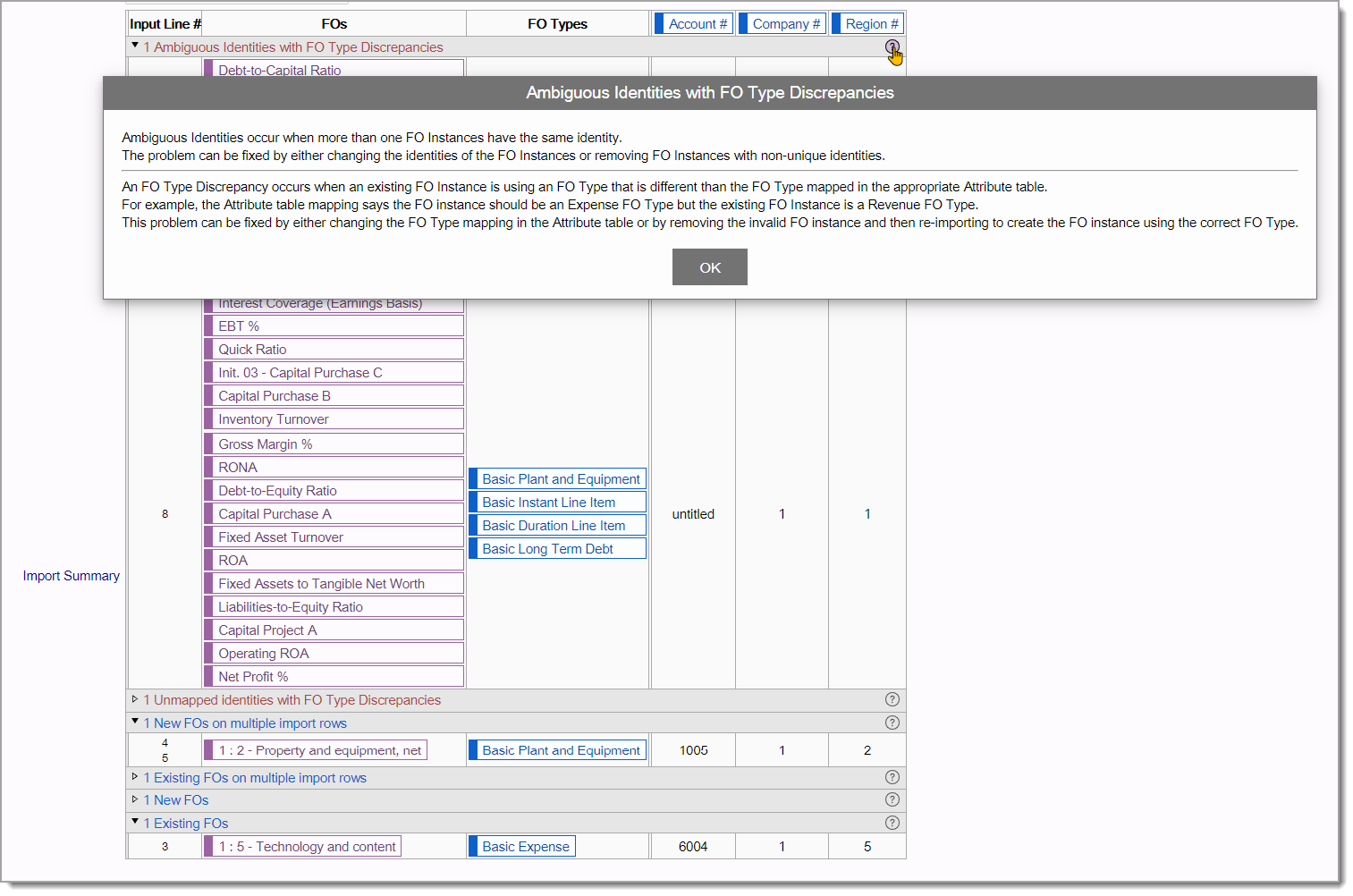
After data has been imported into a model using from a Data Imports or Updating a Data Store Import, you will see an import summary similar to the following table. The results are displayed within different categories that can be expanded to reveal details including the Financial Object Types and Instances involved. Categories in red signify errors that need to be resolved. See below for more details.
Click the  icon to the right of each category name to pop-up detailed explanations for each category reported.
Rows:
- New - input lines that led to the creation of new FOs. In some cases a single input line creates a single FO. In other cases, multiple input lines with the same identity are merged together and mapped to a single FO.
- Replace - input lines that led to the deletion of an existing FO and replaced with a new FO of the proper type. This will occur only if there are type discrepancies and the option to replace them has been selected prior to importing the data into the model.
- Existing - input lines that map to existing FOs. Any type discrepancies are summarized in the Other column.
- Non-primary - input lines that map to non-primary line items rather than FOs. These might include non-financial data such as units sold.
- Ambiguous - input lines that map to more than one FO or line item. No data is imported for such line items.
- Unmapped - input line items that cannot be mapped to existing FOs and for which no FO Type has been specified.
- No identity - input line items that do not specify an identity
- Ignored - input line items that do not map to any existing FOs and in which the specified FO Type is "Ignore". This can be used to flag input lines that should not create a FO.
Data Store Import Summary Details
Summary Table Columns
IInput Line # This is the input line number from the CSV file. In combination with viewing the Data Store Content Report, you can see the content of the input line.
FOs and FO Types Lists the FO Instances and FO Types which are part of each summary. This can be clicked to view individual FO details in panels.
Identity Columns A separate Identify Column will appear for each identity component which is part of the import.
Summary Table Rows
The Data Store results will be divided into various categories. Any errors will be displayed in Red. Click the arrow next to the category title to expand the group to see the details of the FOs involved. Click the icon to see detailed explanations of each category. Explanations are divided into the following category types:
- New - input lines that led to the creation of new FOs. In some cases a single input line creates a single FO. In other cases, multiple input lines with the same identity are merged together and mapped to a single FO.
- Replace - input lines that led to the deletion of an existing FO and replaced with a new FO of the proper type. This will occur only if there are type discrepancies and the option to replace them has been selected prior to importing the data into the model.
- Existing - input lines that map to existing FOs. Any type discrepancies are summarized in the Other column.
- Non-primary - input lines that map to non-primary line items rather than FOs. These might include non-financial data such as units sold.
- Ambiguous - input lines that map to more than one FO or line item. No data is imported for such line items.
- Unmapped - input line items that cannot be mapped to existing FOs and for which no FO Type has been specified.
- No identity - input line items that do not specify an identity
- Ignored - input line items that do not map to any existing FOs and in which the specified FO Type is "Ignore". This can be used to flag input lines that should not create a FO.
Type discrepancies
A type discrepancy occurs when there is a conflict about what the base type of an FO should be. Sources of information that specify possible base types include:
- The current base type of an existing FO (if any)
- The FO Type specified according to the FO Type column of the input line (if present)
- The FO Type specified by an FO Type attribute value base on the input line attribute values (if any)
- If multiple input lines have the same identity, then the FO type information from each input line is considered
If an input line has more than one potential base type, then the input line is considered to have a type discrepancy and listed in the appropriate category such as under new, existing, ambiguous or unmapped depending on the circumstances. Some type discrepancies can be automatically corrected (for example, if an existing FO doesn't match the FO type specified in the FO Type attribute column) by re-importing the data with the option to "Replace FOs with Base Type Discrepancies". Not all type discrepancies can be fixed this way, for example, if there are multiple input lines with the same identity but with different FO types.
Importing data for secondary line items
In most cases an input line is mapped to the Primary Line Item Every Financial Object has a "primary" line item defined by its type e.g. Basic Income's primary line item is Revenue. of an FO. There may be times when it is desirable to map data to non-primary line items. The "Import Tag" column is used to identify which line item (primary or secondary) is used. A blank import tag always identifies the primary line item. Each secondary line item can specify an import tag code used to identify that secondary line item.
Specifying FO Types (and negate)
The FO Type of an input line of a data store import can be determined automatically by an FO Attribute. An FO Type Attribute is created and a computation is specified. The negate data store import attribute can also be used to selectively negate the values of certain input lines.