FO Attributes
FO Attributes allow you to add model-wide parameters to FO Instances as an aid in reorganizing Groups, re-titling FO Instances, mapping input data to FO Instances using identities, specifying FO Sets, and Line Item Sets.
Example: Perhaps you want to identify an FO Instance as being part of a particular product line, region, division, market segment, or employee type.
Each FO Attribute has a default value, and that value is given to every FO Instance, whether it is explicitly added to it or not. Therefore, it is important to take this into consideration when defining the FO Attribute. This can be as simple as adding an attribute selection of , and specifying it as the default.
FO Attributes are enumerated lists of specific string values with any number of secondary attributes.
Creating an FO Attribute
- Go to Model Infrastructure/FO Attributes
-
- Title the attribute e.g. Region
- If you want to add a secondary attribute, click on Add button and select "Secondary Attribute"
- To edit the values of an enumerated list or secondary attributes, click on any element of the table. See below for pasting data.
- To link this FO attribute to another FO Attribute, select it from the drop down menu of "Link to"
- Be sure to select the Default Value for the Attribute.
Prime Attributes and Identity
A prime attribute is any attribute that is not secondary or linked. Prime attributes are important for the following reasons:
- These are the only attribute values that can be explicitly assigned to FO instances (because all other attributes are determined by prime attribute values)
- These are the only attributes that can be used to establish identity (the mapping between data imports and FOs)
- Prime attributes can be either case sensitive or case insensitive.
Secondary Attributes
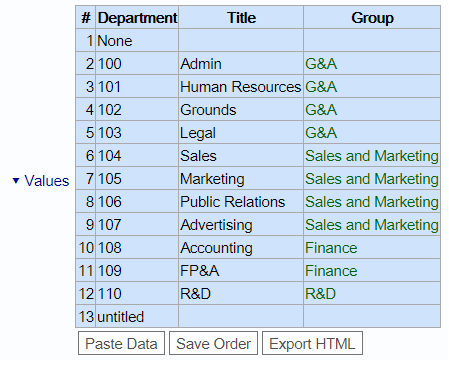
In the example below, a department attribute has been created. Ignoring the numbered initial column, the first column is the primary enumerated list of attribute values, in this case the department code. All remaining columns are secondary attributes, values that are determined strictly by the primary attribute value. Thus the Title and Group values are determined by the Department code number. For example, if an FO instance is assigned a Department attribute value of 104, then the attribute values "Title" will be "Sales" and the attribute value "Group" will be "Sales and Marketing".
Explicit and Computed Secondary Attribute Rules
Secondary attribute values can be either explicitly specified or computed. An explicit enumerated value is displayed in black and computed values are displayed in green. In the example above, the Title is explicitly specified for each department, whereas the Group is computed. An attribute value is computed only when the initial value is blank. To provide a computation for a secondary attribute select the Secondary Attribute that you want to edit in the FO Attribute Panel. This opens a new panel for that Secondary Attribute.
Rules can be newly created or copied from existing Secondary Attributes. To create new rules, click the "Add Computation" button. To copy from an existing FO Attribute, click the "Add Computation Rules from FO Attribute" and from the pop-up menu, expand the Attribute name and select a specific "If" statement or "All Rules" to copy all of the rules. You can also edit existing rules.
This will display an initial computation which can be edited by clicking on the different elements of the computational formula which includes "If" statements, return statements, expressions and references to other attribute values. Existing rules can also be edited. Click the "If" on the statement to make copies, enclose a new "If", add a new nested "If", change the order of the statement, or delete the clause or block. You can also add single "If" statements or All if statements from existing FO Attribute rules.
As an example rule, the computation for the Group column above is:

Linked Attributes
Normally the first column in an FO Attribute table is a prime attribute. However, it can be changed to a linked attributed by associating it with a secondary attribute of another FO Attribute. In the example below, a new FO Attribute, Group has been created and linked to the secondary attribute of the same name in the above table.
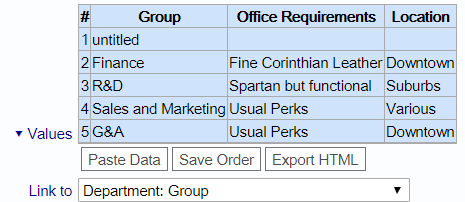
Linked attributes can be used to create hierarchies along various dimensions. The following table shows some of the possibilities.
| Dimension | Example levels |
| Organizational | Company, division, department, supervisory group |
| Geographical (territorial) | zipcode, district, region, area |
| Geographical (political) | zipcode, city, county, state, country |
| Geographical (address) | room number, suite, floor, building, street number, street, neighborhood, zipcode, city |
| Product | product family, product line, product, version, packaging |
| Programs, services, projects | category, kind, family, cluster, clump |
The FO Type and negate columns are special secondary attributes designed to automatically create FO instances when data is imported into the model.
Paste data
A quick and easy way to populate FO attributes is to copy and paste the data from existing spreadsheets or tables. The column titles must always be part of the copy and in the first row. This permits the software to properly handle and merge data from multiple sources. Column titles are used to match existing column titles. This means that the copied table and attribute table do not have to have the same column order. Pasting data will create additional columns if necessary.
Using an FO Attribute
As noted above, every FO Instance will use the Default Value unless explicitly added. Now that the FO Attribute has been created, go to any FO Instance and you will see a new parameter: Attributes. Next to it will be an on